A growing trend amongst top web designers is to use an assortment of subtle textures in their work. This helps give depth and, even if you don’t notice them at first, add an extra degree of complexity and intrigue to a design. If used intelligently and effectively (and by that I mean tastefully!) textures can really lift a website to the next level.
Over the next two weeks I will walk you through a range of techniques that can be applied to many different elements of your designs to give them just that extra bit of style…
This week we’ll be mostly talking about insetting and outsetting page elements in Photoshop (and CSS3), as well as covering how add these effects to non-vector patterns without having to manually cut them out!
Inset / Outset Text & Objects

This is a pretty simple one really and it works on almost any style of font. For both effects you begin in the same way… First, type out your text and select your colours / background colour in Photoshop. Then, in your layers pallet double click the far right of the text layer that you want to apply the effect to. A Layer Styles box should open…
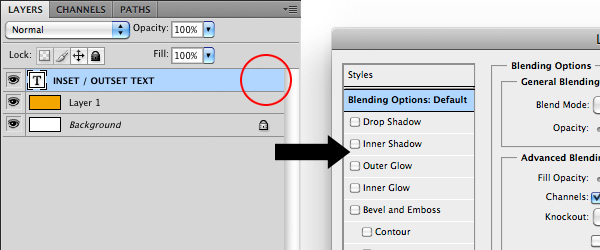
Light Text on a Dark Background
For inset text: In your layers pallet select ‘Inner Shadow’ and set the parameters to the following… Blend Mode = Normal, Opacity = 75%, Angle = 90, Distance = 1px, Choke = 0%, Size = 0px. You then need to select a colour which is similar to, but much darker than your background colour. In this example I have chosen a very dirty orange colour, almost brown.
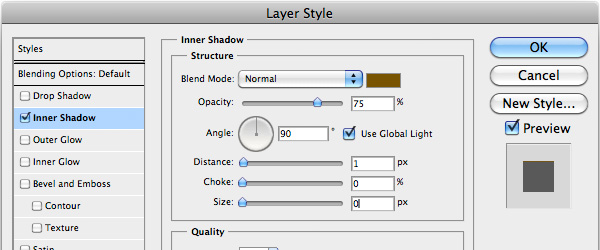
If you would like to apply this effect to much smaller type, then you simply use these same parameters, but select the ‘Drop Shadow’ option instead and set the Angle to -90. At smaller sizes this gives the illusion of an inner shadow - and can also be applied to ‘live’ website text using the CSS3 text-shadow property.
For outset text: Follow the steps for inset text except select ‘Drop Shadow’ instead of ‘Inner Shadow’.
Dark Text on a Light Background
For inset text: Follow instructions for inset text on a dark background, making sure that your inner shadow is darker than your text. Then, add a ‘Drop Shadow’ with the same parameters as your Inner Shadow, but select a much lighter colour than your background.
For outset text: Follow instructions for outset text on a dark background, making sure that your drop shadow is darker than your text. Then, add an ‘Inner Shadow’ with the same parameters as your Drop Shadow, but select a much lighter colour than your background.
The four examples should look like this:
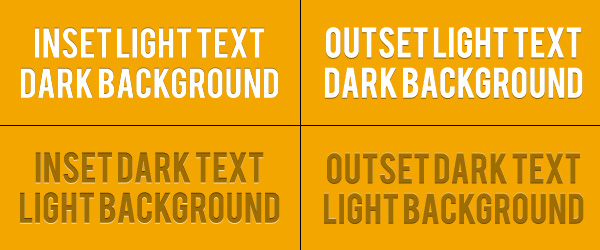
The parameters that I’ve used here are by no means set in stone, so please feel free to have a play around and find out what works best for you…
Using CSS3
If you want to apply these effects using CSS3 then you are a little more restricted as there is no ‘Inner Shadow’ property. Using pure CSS works better on smaller text and all you have to do is the following:
For inset text:
Light text on dark background = text-shadow: #darkcolour 0px -1px 0px;
Dark text on light background = text-shadow: #lightcolour 0px 1px 0px;
For outset text:
Light on dark / dark on light = text-shadow: #darkcolour 0px 1px 0px;
Other Applications
This same technique can be applied to all sorts of other page elements such as buttons / decorative content dividers / boxes. You can even combine several and create really nice effects!
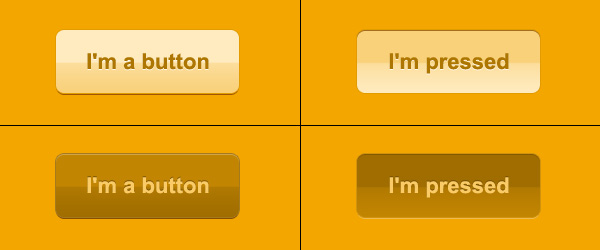
Get This Effect Using Non Cut-out Objects
If you’re anything like me, you come across design elements that you’d like to use in your designs all over the web - the majority of which aren’t cut-out PSDs, or vector files. This can cause problems as it can be very time consuming trying to manually cut out complex objects, especially if they’re low resolution!
If it’s a dark pattern or object and it’s on a plain white background, then anyone who knows anything about Blending Modes in Photoshop will know that you can simply switch the blending mode to ‘Multiply’ and your white background will become transparent! However, even though the background disappears, it still maintains it square / rectangular dimensions and therefore any drop shadows or inner shadows applied to it will be applied to the rectangle, and not the outline of the pattern.
So, how do you apply an inner shadow or drop shadow to an object that’s contained within a solid box? In this example I’m going to show you how to achieve the following effect:
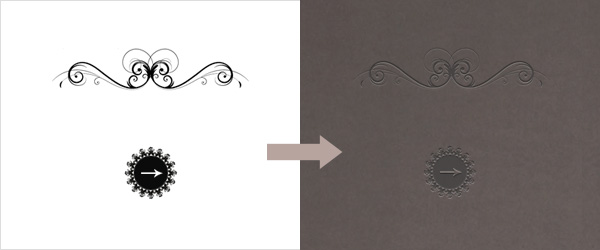
This is obviously an ‘inset’ effect, however the same techniques can be just as easily used to create an ‘outset’ effect if you switch a few things around…
The first thing to do is locate your patterns / swirls / whatever, and make sure that they are black and white. Load Photoshop and open the image and background that you want to place it on (which should be pretty dark for this example, but not black). If the pattern is in colour then go to Image > Adjustments > Desaturate to make it black and white. Then go to Image > Adjustments > Levels and slide the pointers around until your background is pure white and your pattern is pure black, or vice-versa. If your background is black then select Image > Adjustments > Invert. Your patterns should now look like the ones on the left of the image above.
Next, set your pattern layer blending mode to ‘Multiply’. This should make the white background disappear.
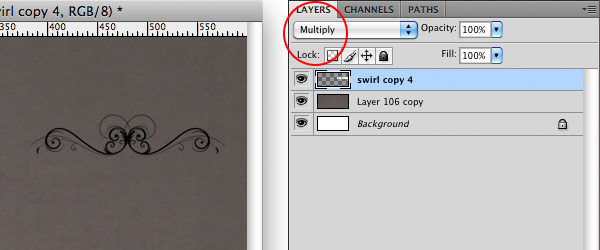
Duplicate your pattern layer below by holding ALT and dragging the layer downwards in the layers pallet. Hide the original layer and make sure the new one is selected. Now, go to Image > Adjustments > Invert, which will make the background black and the pattern transparent. Then set the layer blending mode to ‘Screen’. This will make the background transparent and the pattern white.
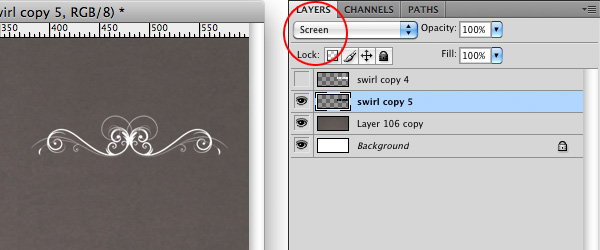
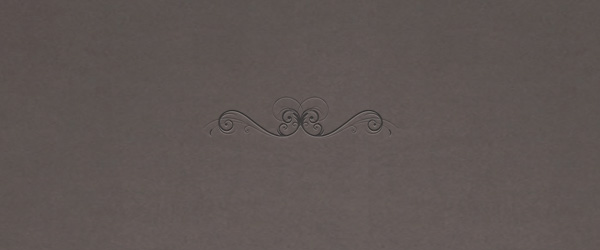
Now, making sure that the pointer is selected (just press ‘V’ on your keyboard if you aren’t sure) press the down-arrow on you keyboard once to move the pattern down by 1px, then set the opacity to about 25%. Finally, un-hide the other layer and set the opacity to about 55%. And there you have it - an inset pattern without any of the hassle of manually cutting it out!
Next week we’ll be talking about adding texture to backgrounds using subtle pixel patterns and sample photographs / scans, so make sure you look out for that one!
It would be great to hear your thoughts on these techniques and whether you are using them in your designs…
By Chris Skelton